Monday, April 30, 2012

ITM Performance Analyzer - (ITPA) DB2 Configuration and it's effects?

Scenarios : Some snapshots of how a Performance Analyzer panel on the TEPS GUI shows up when the user clicks on the Performance Anayzer if the Database is configured ?

Good one :


Bad one :
If DB2 is not configured right :


How do we track and resolve this ?

I will cover this in my next blog ?

Friday, April 27, 2012

Tivoli Performance Analyzer - Domain Support installation and viewing it on the TEPS GUI.

(All views and opinions are mine and does not reflect my employer's point of view. )

IBM Tivoli Performance Analyzer agent is an intelligent tool that predicts the health of a system based on predictive analyses looking at the previous history of various factors like CPU, Disk and Memory amongst other parameters.
User will get an overview of how things will look down the road if the current state  or health continues - thereby giving an opportunity to correct it before server reaches a critical situation.

For more on the product please refer to http://publib.boulder.ibm.com/infocenter/tivihelp/v15r1/index.jsp
and select ' IBM Tivoli Monitoring'

In order the Performance Analyzer is fully effective and utilized, end-user has to install the ITPA support product as well as the Domain Support.

First the user would install the ITM 6.2.3 FP1 and choose the installation of the Performance  Analyzer agent,

After this - install and configure the Performance Analyzer Domain Support. product ( CI62LML )

User has to stop and reconfigure TEPS after this - to get the right task names correctly rendered on the TEPS GUI.

once done - user will run a <CANDLE_HOME>/bin/cinfo -t  (' the letter 't') and view the results and note that it will list the Performance Analyzer ( pa ) and the rest of the domains support ( p0..p6 ) are installed.


Thursday, April 5, 2012

Provisioning Virtual Images in Smart Cloud Provisioning.


IBM recently released the Smart Cloud during the Pulse 2012 and I got a sneak preview of the application under the hood. I wont get into the marketing details  here  -rather into some technical of the product, and how easy it is to create some instances in the product.
Some Snapshots are included here.

First you would login to the SCP user interface and go thru first few steps as indicated here to create the instances.


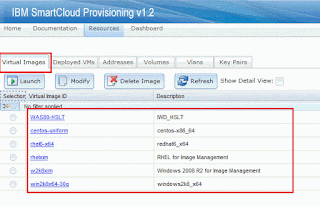
Click on Virtual Images and you will see the list of available Images that are offered to you.
You have to select an image and click on Launch, indicate the number of instances you need.


Once this is done - you see them in the Deployed VMs tab.


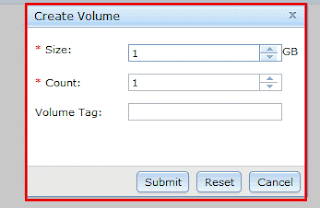
you can attach storage to it -once have created the instance of this image.


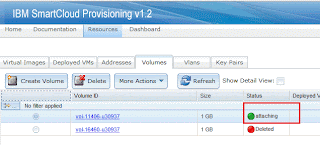
Once storage is created - you have to attach it to a deployed VM


Now you have an instance with the storage attached.

the Login procedure is simple.

just download the private key from the SCP portal and download it


Get the IP address of the newly created instance.


Get the IP address of the newly created instance.


ssh -i <private.key > IP address of the newly created instance to login.

This should get you started.

As to how to create an instance from an image - will be covered in upcoming blogs.


Provisioning Virtual Images in Smart Cloud Provisioning.


IBM recently released the Smart Cloud during the Pulse 2012 and I got a sneak preview of the application under the hood. I wont get into the marketing details  here  -rather into some technical of the product, and how easy it is to create some instances in the product.

Instances in this context means servers on a virtual environment.

Some Snapshots are included here.

First you would login to the SCP user interface and go thru first few steps as indicated here to create the instances.


Click on Virtual Images and you will see the list of available Images that are offered to you.
You have to select an image and click on Launch, indicate the number of instances you need.
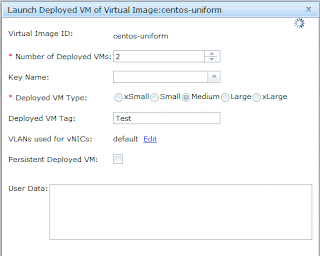


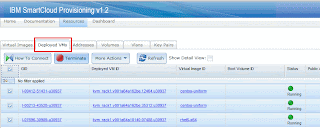
Once this is done - you see them in the Deployed VMs tab.


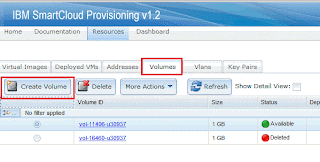
You can attach storage to it -once have created the instance of this image.


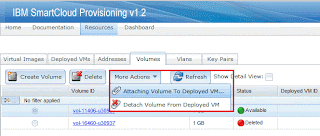
Once storage is created - you have to attach it to a deployed VM.


Now you have an instance with the storage attached.

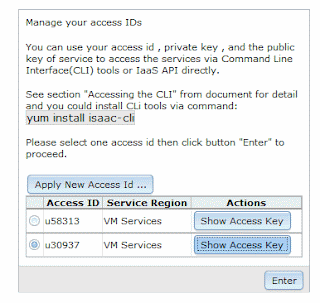
The Login procedure is simple.

just download the private key from the SCP portal and download it
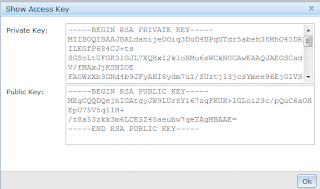

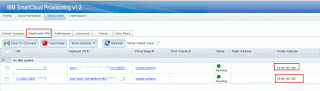
Get the IP address of the newly created instance.


Get the IP address of the newly created instance.


ssh -i <private.key > IP address of the newly created instance to login.

This should get you started.

As to how to create an instance from an image - will be covered in upcoming blogs.

Tuesday, March 13, 2012

Starting WebSphere sMash on Windows 7. UnsatisfiedLinkError, ZSO could not be located ...arch=x86_64

( All opinions are my own and does not reflect my employer's point of view. There could be better ways of doing stuff than written below, but what I have written below got me working again)


The WebSphere sMash is an IBM Application server that helps in building web applications faster, and lets users concentrate on writing business logic. More on this can be found at http://www.projectzero.org/


Having been used to running this on Windows XP -32 bit, when I was working on sMash - I had to face some challenges when I migrated the WebSphere sMash to Windows7 ( yes, I got a new Laptop running Windows 7)
So, when I tried to start up WebSphere sMash - it would not come up.
That's when I realized that  I needed to do some digging up.

My blog here says about how to start the sMash on Windows 7 OS.
Basically,you need to be pointing to the 32 bit JVM in order to get this right.  Once you initialize and also reconfigure the resolved. properties -then the application  should start up fine.


Wednesday, March 7, 2012

Authoring fixlets - Some Search Patterns in Relevance.

( All opinions are my own, and does not reflect my employer.)
 Ramblings on how to create some fixlets on BigFix.

Background: Big Fix is an IBM application used to deploy patches, upgrade or install rules and can monitor servers/clients that needs this patch - It will automatically inform the client and the client will do a pull (versus a push of the patch from the server ) which is more effective.

Up until IBM bought this, it was called Big Fix and now it is Tivoli End Point manager.

A fixlet is a composition of Rules, Actions and Relevance that describes the patch or an install on the client.

Once this fixlet is deployed with the above, TEM will constantly monitor the clients and deploy them.
My blog here shows a sample on how to write fixlets using different relevance rules on TEM ( Tivoli End Point Manager -Previously called Big Fix )

Note : I am only showing the different relevance rules that can possibly be applied to check if the rpm is present.

Note : Here I am interested in "expect"

Snapshot shows how a relevance is written - that identifies the clients as Linux:


Picture :
One other way to deploy is to identify a specific server on which the package will be deployed.


Picture 3:


Picture 4: Once this is identified - User will write appropriate action scripts to deploy the package.

Creating a fixlet to identify deployment of NMA agent from Big Fix Server.

All opinions are my own and does not reflect that of my employers.

NMA is the network montoring agent - an agent developed by IBM that helps in detection of servers on the network and report on their characteristics.

Big Fix is an IBM Application that is being used to detect clients that need patches/ installation of software or bringing servers upto sync on new releases.
Big Fix is also called Tivoli Endpoint Manager after IBM bought it over.
So references to TEM or Big FixServer are one and the same.

In this blog I will briefly describe how to deploy the NMA agent on remote clients.
I'd assume that the the agent is already available on the Big Fix server and can be used to deploy.

Create New Fixlet. 

Creating the relevance rules - this means that the relevance rules have to be true in order for the agent to be deployed.

 
Create a script that will be executed on the remote client once the relevance rule is satisfied.

A sample Relevance Rule to check if the Tivoli NMA agent is installed or
not in Big Fix.
Relevance:

Action :

How to Unistall and Install Big Fix Server on Windows.

References to Big Fix means - IBM Tivoli Endpoint Manager.

Here I talk about my experiences on removing and reinstalling the Big Fix Server that was already installed on the Windows platform and things I learnt in the process.

Very Important - Just do not remove the Big Fix from the Add/Remove programs - how ever... Uninstall both the Big fix and the Microsoft SQL server folders and application from the Add/Remove programs.

One other thing I noticed was, the Tivoli Endpoint Manager (Big Fix Server) after installation did not recognize the older Clients ( in my case  the Unix clients) that were recognized before the removal, so I had to uninstall the clients manually in order for the TEM server to recognize them.
rpm -e BESAgent and let the TEM Server rediscover it again.

Picture : Uninstall of the application in progress:


Picture :
Removal of the folder/directory structure - in other words - cleaning out.


Since I was experimenting with this - I had to select the Evaluation Version.


I accepted the defaults - no changes here.


Picture :
Set password for the TEM administrator.
 

Picture:


Picture below : If this happens it means the Microsoft SQL Server was not removed completely, this leads to the TEM failure. So in this case I'd go back and clean out the SQL installation - both from the Add/Remove and also clean out the SQL directory folder structure and then restart all over.
 ( Do not abort the installation , however finish this installation - remove, clean out and reinstall )


Hope this helps who is going thru similar situation.

Tuesday, March 6, 2012

Big Fix Server and deploying Fixlets.

Big Fix is an IBM Product  that specializes in keeping track of clients downstream, that need patches/updates and does it as and when required.

In other words, Big Fix maintains a list of clients ( or as I like to call them 'servers downstream' ) and tracks them periodically and when a user wants to deploy a new patch or an install , then Big Fix looks at a few things like Relevance, and performs some actions and sees to it that the remote servers get the patches.

Several attractive features of the Big Fix makes this operation smooth and simple and requires no manual intervention. The One I found interesting is the "Relevance" feature, which is a rule (or a set of rules ) that tells things like what type of a server, what type of an OS and what range of IP address and things like that . Once these conditions in the rule are met - then Big Fix Server issues a UDP request to the clients ( or servers downstream) that the patch/update is required.
The client(s) then initiate a request and pulls down the patch or an update, and completes the operation.

Some snapshots can be seen in next blog.

Thursday, February 9, 2012

How to Install Groovy Plugin in Eclipse.

Here I have Eclipse 3.5 - so I'm installing the Groovy 3.5.


Go to

http://groovy.codehaus.org/Eclipse+Plugin

(Embedded image moved to file: pic04471.gif)


(Embedded image moved to file: pic21999.gif)

(Embedded image moved to file: pic11070.gif)


Follow steps in this page for creating the Groovy Project and Groovy
Script.

Run As - > Groovy Script.

Friday, February 3, 2012

IBM's One UI

IBM's One UI standard is a Theme based interface in Dojo for rendering data on the browser.
This theme includes Dojo 1.7.0. A latest version will be released in 1Q 2012.
The standard includes a "one ui "theme that users can use by including the "body class=oneui".
Advantages : ( to be continued )

Thursday, February 2, 2012

How to Uninstall Speedbit in Firefox


Speed bit is a search engine - that gets installed when you install some Open Source or Utilities on the net.
This gets installed as the default search engine for both IE and Firefox.It may be a good and bad thing at times depending on what you are searching. It replaces the default browser search engine like Google or Yahoo. So, it maybe frustrating each time to select Google or your default search engine and do searches.
The remedy in that case is to remove this search engine.,
Here I describe how to remove it from FireFox.
(Embedded image moved to file: pic17293.gif)
Click on dropdown and search for speedbit.
In the dropdown - select the last item - " Manage Search Engine"
Click on Speedbit - click on "Remove " button, and click OK. Restart
Firefox.
(Embedded image moved to file: pic10809.gif)

Wednesday, February 1, 2012

Loose lips sinks ships.

This is an American phrase for 'beware of unguarded talk'.  The context is the recent deportation of 2 English nationals who said something over twitter that was not taken light by the host country US.

So, social media has to be used very carefully so as not to offend others and be sensitive to others when using media like twitter/micro blogging sites and also writing stuff on the net.. even if the intent was not to harm others - there can be instances that across cultural barriers this can lead to misunderstandings.