Thursday, September 19, 2013

How the confidence in Performance Analyzer is calculated.

This blog explains how the confidence in PA is being calculated.

Often times you will see the value varying even though you have good range of data being calculated.

The confidence value depends on the values in the TDW for the analytical task being calculated, and if the values are varying then the confidence will proportionately vary.
Higher the variance - lower the confidence.
Likewise - if the values are close to each other - then the confidence will come up close or higher than 90%/

( the other way I look at it is, if I know that the values are same or approximately the same each time the reading was taken and If I can select that range in the PA config window - then I can get a good confidence value , but for this I need to know what are the values in the Tivoli Data Warehouse )

Below is my experiment on Average Memory Utilization Analytical task for 11 days and is captured below on how I was able to increase the confidence by hand editing or simulating good data.
This is not dependent on the number of samples - but on the values.

--

Before:

I have 11 day worth of data for the Average Memory free, with varying values - and the calculated confidence was 25, since the "average memory free" was varying as shown below.


The snap shot below is the TDW data contents, The column on the left is the day representation split as follows 1 - 13 - 09 - 06 -23-date,  
( i.e Sep 6th 2013 and upto Sep 18th 2013. )  


--

After:

Now, let's change the value to a constant for all the days - by hand -editing the value in the TDW to 369.45 and watch that the Confidence goes to 100.


Watch the confidence jump to 100


Some supporting notes :
This was tested on RHEL 5. and DB2 housing the TDW, and all PA analytical tasks were running
To enable a quicker visual - I had to turn the analytical task to run every minute and watched the <ITM LOGS>kpacma.log  so that it would refresh faster.

Tuesday, September 17, 2013

Selecting range of data to calculate the Confidence in Tivoli Performance Analyzer.

The confidence of the data for the Performance Analyzer for the task attributes are based on the inputs for the domain from the Tivoli Data Warehouse.

This confidence is listed in the TEP GUI whenever the user opts to view the analysis of the attribute computed by the Performance Analyzer.
e.g: Let;s say the user wants to view the CPU performance of a certain configured agent, ( Assuming that the historical collection was setup ), data will show up as graphs and charts along with forecast and status details.

User would like to see the confidence in the data as well - This is calculated based on the Least Square Regression algorithm ( which I will try not to get into here )

The confidence is great when there are no breaks in data. but low when there is disruption of data and so on.

Here I will go about how to change the calculation in the Tivoli Performance Analyzer Configuration window - on how to select a set of data for this calculation.
Open the PA configuration window and I have picked the CPU Utilization for Linux as my demo.

Click on   "Add constraint " in the PA configuration button -> Input tab as shown below.


Click on "Add Constraint" and in this example I am tweaking the CPU Utilization ( Linux ) and you can change or choose and pick the attributes based on your business needs. I chose the  "Linux CPU Averages" -> and  "Time Stamp" and chose the range I wanted to start computing the data collection.


I suggest a couple of tries - trial and error to get the confidence level showing up to your business needs.

First option is to just add one constraint, and once you are familiar - you can add multiple constraints and set the date range.

Here are some samples that I tried. ( you can experiment it based on this and then use a scheme that fits )
- Set the Granularity to "Hourly"
- Click on Add Constraint -> Chose Linux CPU Averages and "Time Stamp"
- Click on the window just below the Time stamp and chose the date ( in my case I said 'let's get all data from Sep 16th 12:00  )
- Click on Apply.  This should set the task when run to pick data from Sep 16th onwards.
- let the task run.


Some more tips to see the results faster. ( this is optional - but just a suggestion )
1. Set the task to run every often ( I tried running it every minute ) just to see the reaction.


2. Turn the debugging on from Info to Debug - so that I was able to see the logs when the task ran. ( this is optional - but just a suggestion )
If you do this - then remember to stop and start the PA agent ( itmcmd agent stop pa and start pa )
AgentIdUniqueId__file=local.cfg
ConsolePassword__file=local.cfg
DisableVACM=true
EngineBoots__file=local.cfg
LogCount=3
LogFile=/opt/IBM/ITM/logs/kpacma.log
LogLevel=Debug  <==============
LogSize=10000000
NotificationQueueLimit=50
UdpPort=-1


3. View the traces - kpacma.log,  ( this is optional - but just a suggestion )
This is what shows up when the task is run, Here I set the 2 constraints from the front end to watch for everything from 7:00 PM to 8:00 PM on the 16th Sep 2013.
The 1130916190000000
=  1 -13-09-16---19-00-00
=  Ignore the first digit,      2013 Sep  16,   7:00 PM  
likewise the
'1130916120000000'  
is
1-13-09-16-20-00 00  essentially  8 PM.

( There will be just 1 timestamp if there is 1 constraint configured. )


Another example :   2013 Sep 16 12;00 AM to 7 PM

2013-09-17 03:12:09: SELECT  "Linux_CPU_Averages_HV"."AVG_CPU_Usage_Moving_Average" , "Linux_CPU_Averages_HV"."Timestamp" , "Linux_CPU_Averages_HV"."TMZDIFF" , "Linux_CPU_Averages_HV"."Timestamp" , "Linux_CPU_Averages_HV"."TMZDIFF" , "Linux_CPU_Averages_HV"."System_Name" , "Linux_CPU_Averages_HV"."System_Name" , "Linux_CPU_Averages_HV".WRITETIME , "Linux_CPU_Averages_HV"."TMZDIFF"  FROM itmuser."Linux_CPU_Averages_HV" "Linux_CPU_Averages_HV" WHERE "Linux_CPU_Averages_HV"."System_Name" IN ( 'nc9118041057:LZ') AND ("Linux_CPU_Averages_HV"."Timestamp" > '1130916000000000')  AND ("Linux_CPU_Averages_HV"."Timestamp" < '1130916190000000')  ORDER BY  "Linux_CPU_Averages_HV"."System_Name"  , "Linux_CPU_Averages_HV".WRITETIME
2013-09-17 03:12:09: All 19 measurement(s) processed and found 1 result(s)


Things to watch:
- See that you hit the Apply button after making changes to the constraints so that the rule gets applied.
- The "Forecast Overlay" panel in the GUI - does not change the graphs to the "From date" and the "End date". Only the calculations of the confidence, strength and number of records change.
- Check that the task is set to something reasonable time frame so that you can watch the effects of the changes. ( I tried it for every minute - once I got it running - changed the run interval back to the original setting )
- to check if the data is being pulled enable the logging , stop start agent and trace the kpacma.log . The logs can get big if you have a lot of tasks running and difficult to watch. so try greping appropriate task and the server.

Hope this small tutorial helped.

Monday, September 16, 2013

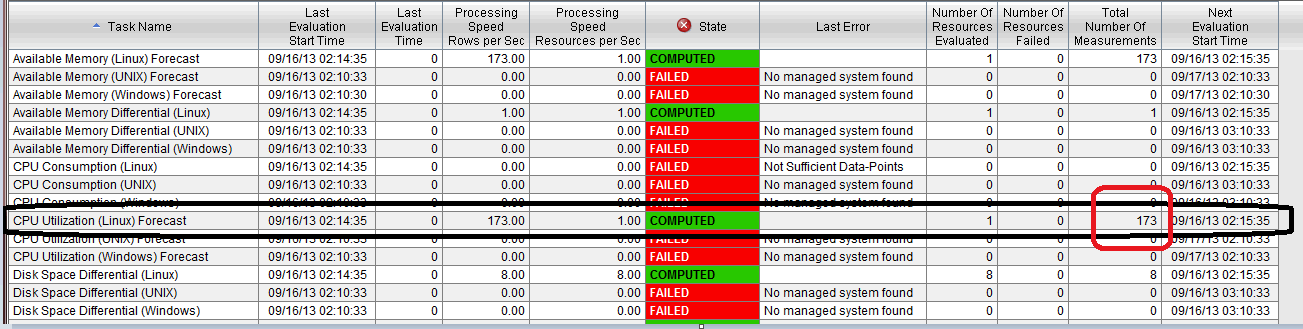
PA - Analysis of "Total Number of Measurements" on the TEP Client for the Performance Analyzer task.

The calculation of the number of records for the task (in this case I will discuss the CPU Utilization and for Linux ) for "Total Measurements" is coming from Tivoli Data Warehouse.

The blog explains how this came about and what are the other possible measurements that can be obtained in the Performance Analyzer

A snapshot of the TEP Client showing the Performance Analyzer tasks is shown below.


To double check this, login to the Database ( in this case DB2 ) and run this query for CPU Utilization for Summarized data for Hourly.

connect to WAREHOUS        

select count(*) from itmuser."Linux_CPU_Averages_H"


But before this - one has to check to what granularity has the user configured the task measurements in the PA configuration window.

For this - open the Performance Analyzer configuration and view the granularity. (here it is set to Hourly - so the query will be
Linux_CPU_Averages_H

Had the granularity been set to Daily - then the query would have a suffix of "D", Likewise  a granularity set to "Weekly, then the query would have a suffix of "W" and so on.


Thursday, September 12, 2013

paconf.jar - export/createDB/ execSQL

Often times there is a need for recreating the Performance Analyzer configuration Database.

Here I will write about some of my experiments with the command.

The command line to run it is ( on linux 64 bit )  ( first cd to the folder where the paconf.jar is present )

/opt/IBM/ITM/JRE/li6263/bin/java -cp paconf.jar:/opt/IBM/ITM/classes/kjrall.jar:/opt/ibm/db2/V9.7/java/db2jcc.jar:/opt/ibm/db2/V9.7/java/db2jcc_license_cu.jar  com.ibm.tivoli.pa.config.PAConfigMain
 
The various options are :
java -jar paconf.jar [-export {taskfile} [-domain domainCode] |-createDB|-destroyDB|-cleanInitDB|-gui|-bareExecSQL|-execSQL taskfile-updateTables]

        -export         Export tasks to a file. Default to: kpa_tasks.sql. Optional -domain parameter specifies which domain tasks shoud be exported. Use 000 to export tasks not assigned to any domain.
        -createDB       Create the PA DB if it is not there
        -destroyDB      Drop all tables in TEPS DB created by ITPA
        -cleanInitDB    Re-create the PA DB. Same as -destroyDB then -createDB
        -gui            Bring up the bare bone GUI (not fully functional
        -bareExecSQL    Executing SQL statements from specified file. Tasks active/inactive state will not be preserved.
        -execSQL        Executing SQL statements from specified file. Tasks active/inactive state will be preserved.
        -updateTables   Update tables to the latest version (create nonexisting ones)


-gui - does not work ( not complete )
My experiments have been with mostly -execSQL,  -createDB, -cleanInitDB

-createDB on a RHEL 64 bit: ( this will zap the contents of the tables to 0, all tables will be created though empty. )


 /opt/IBM/ITM/JRE/li6263/bin/java -cp paconf.jar:/opt/IBM/ITM/classes/kjrall.jar:/opt/ibm/db2/V9.7/java/db2jcc.jar:/opt/ibm/db2/V9.7/java/db2jcc_license_cu.jar  com.ibm.tivoli.pa.config.PAConfigMain -createDB  
-destroyDB  will drop the tables ( select count(*) from itmuser."KPATASKS"  will say SQL0204N  "ITMUSER.KPATASKS" is an undefined name.  SQLSTATE=42704

  /opt/IBM/ITM/JRE/li6263/bin/java -cp paconf.jar:/opt/IBM/ITM/classes/kjrall.jar:/opt/ibm/db2/V9.7/java/db2jcc.jar:/opt/ibm/db2/V9.7/java/db2jcc_license_cu.jar  com.ibm.tivoli.pa.config.PAConfigMain -destroyDB
 

-cleanInitDB  /opt/IBM/ITM/JRE/li6263/bin/java -cp paconf.jar:/opt/IBM/ITM/classes/kjrall.jar:/opt/ibm/db2/V9.7/java/db2jcc.jar:/opt/ibm/db2/V9.7/java/db2jcc_license_cu.jar  com.ibm.tivoli.pa.config.PAConfigMain -cleanInitDB
 (not much help here )

-updateTables ( not operational )


On windows  ( 64 bit - 6.2.3 FP1 )
On ITM 6.3.0 ( change the java search string to Java70 below  )
If we are using the Oracle 12c - suggest use ojdbc7.jar
The -gui option does not work.


c:\ibm\itm\java\java60\jre\bin\java -cp c:\IBM\ITM\TMAITM6\paconf.jar;c:\IBM\ITM\TMAITM6\kjrall.jar;c:\downloads\ojdbc6.jar com.ibm.tivoli.pa.config.PAConfigMain -gui 

On a windows 64 bit ITM 6.3.0 (oracle 12c ) // java is changed. oracle 6 was changed to 7.
c:\ibm\itm\java\java70\jre\bin\java -cp c:\IBM\ITM\TMAITM6\paconf.jar;c:\IBM\ITM\TMAITM6\kjrall.jar;c:\downloads\ojdbc7.jar com.ibm.tivoli.pa.config.PAConfigMain -createDB

This fails with this message.

 c:\Downloads>c:\ibm\itm\java\java70\jre\bin\java -cp c:\IBM\ITM\TMAITM6\paconf.j
ar;c:\IBM\ITM\TMAITM6\kjrall.jar;c:\downloads\ojdbc7.jar com.ibm.tivoli.pa.confi
g.PAConfigMain -createDB
Mar 14, 2014 5:42:52 AM com.ibm.tivoli.pa.config.PAConfigMain process
INFO: Check if config DB already exists for PA...
Mar 14, 2014 5:42:52 AM com.ibm.tivoli.pa.config.data.DBAccessor connect
WARNING: java.sql.SQLException: Listener refused the connection with the followi
ng error:

ORA-12519, TNS:no appropriate service handler found

Mar 14, 2014 5:42:52 AM com.ibm.tivoli.pa.config.data.DBAccessor connect
WARNING: Java class path used: c:\IBM\ITM\TMAITM6\paconf.jar;c:\IBM\ITM\TMAITM6\
kjrall.jar;c:\downloads\ojdbc7.jar
Mar 14, 2014 5:42:52 AM com.ibm.tivoli.pa.config.PAConfigMain process
INFO: Done

Exporting the contents of the Performance Analyzer Configuration Data.

This is on RHEL 32 bit.
 
1.  cd to    /opt/IBM/ITM/li6263/pa/bin  (    /ITM/<arch>/pa/bin  folder )

2.  Get the location of where the DB2 drivers are ? and also the location of the paconf.jar , cd to that folder before executing the export command.
This is a cut and paste - but you would make necessary file location changes of the DB2 and the PA Jar files.
Look at the last option - it is the export that does the activity of pulling data out and dumps to kpa_tasks.sql

/opt/IBM/ITM/JRE/li6263/bin/java -cp paconf.jar:/opt/IBM/ITM/classes/kjrall.jar:/opt/ibm/db2/V9.7/java/db2jcc.jar:/opt/ibm/db2/V9.7/java/db2jcc_license_cu.jar  com.ibm.tivoli.pa.config.PAConfigMain -export


3.Troubleshooting -

- check that you are executing from the same folder where the paconf.jar is ( ls -l paconf.jar )
- check that the path to the DB2 drivers are right in the command ?


4. On successful completion

Sep 12, 2013 4:12:42 AM com.ibm.tivoli.pa.config.PAConfigMain process
INFO: Exporting tasks from DB. This may take a minute...
Sep 12, 2013 4:12:42 AM com.ibm.tivoli.pa.config.data.FileTaskStorage exportDB  <==check this line - for troubleshooting .
INFO: exporting tasks from DB
Sep 12, 2013 4:12:44 AM com.ibm.tivoli.pa.config.PAConfigMain process
INFO: Export completed: Thu Sep 12 04:12:44 CDT 2013

5. Check that the file kpa_tasks.sql is having the sql commands (approx 23K lines )

6. Now do the clean up and cleanInitDB


Pre-deletion.


(Pre-deletion )


I have added a task - ( pre-deletion )


Now - delete and see that the tasks are all gone - the default tasks are cleaned out

CleanInitB Option


cleanInitDB

This will zap the ITPA tasks - there will be no tasks in the PA configurartion window.
( All the "+" will be gone ) 
/opt/IBM/ITM/JRE/li6263/bin/java -cp paconf.jar:/opt/IBM/ITM/classes/kjrall.jar:/opt/ibm/db2/V9.7/java/db2jcc.jar:/opt/ibm/db2/V9.7/java/db2jcc_license_cu.jar  com.ibm.tivoli.pa.config.PAConfigMain -cleanInitDB


Sep 12, 2013 4:33:48 AM com.ibm.tivoli.pa.config.data.DBTaskStorage dropAllTables
INFO: Dropping all tables
Sep 12, 2013 4:33:50 AM com.ibm.tivoli.pa.config.data.DBTaskStorage dropAllTables
INFO: All tables dropped
Sep 12, 2013 4:33:50 AM com.ibm.tivoli.pa.config.data.DBTaskStorage createTables
INFO: Creating KPA Tables for the 1st time
Sep 12, 2013 4:33:51 AM com.ibm.tivoli.pa.config.data.DBTaskStorage createTables
INFO: Tables successfully created
Sep 12, 2013 4:33:51 AM com.ibm.tivoli.pa.config.PAConfigMain process
INFO: Done

This picture below says that the browser cache is still having data .
I want to see that the PA analytical tables are all empty - 


IMPORTANT : Close the browser and then restart the browser again.
The below model -shows that the Browser cache was not cleaned ! so refresh cache of the browser.


execSQL   kpa_tasks.sql  // see results from output below
( Look below for another similar command  )
/opt/IBM/ITM/JRE/li6263/bin/java -cp paconf.jar:/opt/IBM/ITM/classes/kjrall.jar:/opt/ibm/db2/V9.7/java/db2jcc.jar:/opt/ibm/db2/V9.7/java/db2jcc_license_cu.jar  com.ibm.tivoli.pa.config.PAConfigMain  -execSQL kpa_tasks.sql

or you can use just "/opt/IBM/ITM/lx8266/pa/config/deployed/kp0_tasks.sql'

Sep 12, 2013 4:41:49 AM com.ibm.tivoli.pa.config.data.FileTaskStorage execSQLFromFile
INFO: Executing SQL statements from: /opt/IBM/ITM/li6263/pa/bin/kpa_tasks.sql
Sep 12, 2013 4:42:00 AM com.ibm.tivoli.pa.config.PAConfigMain process
INFO: Done


Bring up the PA configuration panel and check for tasks ? that were exported.

The tasks are back.


 /opt/IBM/ITM/JRE/li6263/bin/java -cp paconf.jar:/opt/IBM/ITM/classes/kjrall.jar:/opt/ibm/db2/V9.7/java/db2jcc.jar:/opt/ibm/db2/V9.7/java/db2jcc_license_cu.jar  com.ibm.tivoli.pa.config.PAConfigMain  -execSQL /opt/IBM/ITM/lx8266/pa/config/deployed/kp0_tasks.sql

  /opt/IBM/ITM/JRE/li6263/bin/java -cp paconf.jar:/opt/IBM/ITM/classes/kjrall.jar:/opt/ibm/db2/V9.7/java/db2jcc.jar:/opt/ibm/db2/V9.7/java/db2jcc_license_cu.jar  com.ibm.tivoli.pa.config.PAConfigMain  -execSQL /opt/IBM/ITM/lx8266/pa/config/deployed/kpu_tasks.sql

 /opt/IBM/ITM/JRE/li6263/bin/java -cp paconf.jar:/opt/IBM/ITM/classes/kjrall.jar:/opt/ibm/db2/V9.7/java/db2jcc.jar:/opt/ibm/db2/V9.7/java/db2jcc_license_cu.jar  com.ibm.tivoli.pa.config.PAConfigMain  -execSQL /opt/IBM/ITM/lx8266/pa/config/deployed/kp3_tasks.sql
 

 /opt/IBM/ITM/JRE/li6263/bin/java -cp paconf.jar:/opt/IBM/ITM/classes/kjrall.jar:/opt/ibm/db2/V9.7/java/db2jcc.jar:/opt/ibm/db2/V9.7/java/db2jcc_license_cu.jar  com.ibm.tivoli.pa.config.PAConfigMain  -execSQL /opt/IBM/ITM/lx8266/pa/config/deployed/kp6_tasks.sql
 

/opt/IBM/ITM/JRE/li6263/bin/java -cp paconf.jar:/opt/IBM/ITM/classes/kjrall.jar:/opt/ibm/db2/V9.7/java/db2jcc.jar:/opt/ibm/db2/V9.7/java/db2jcc_license_cu.jar  com.ibm.tivoli.pa.config.PAConfigMain  -execSQL /opt/IBM/ITM/lx8266/pa/config/deployed/kpi_tasks.sql
 

 /opt/IBM/ITM/JRE/li6263/bin/java -cp paconf.jar:/opt/IBM/ITM/classes/kjrall.jar:/opt/ibm/db2/V9.7/java/db2jcc.jar:/opt/ibm/db2/V9.7/java/db2jcc_license_cu.jar  com.ibm.tivoli.pa.config.PAConfigMain  -execSQL /opt/IBM/ITM/lx8266/pa/config/deployed/kp4_tasks.sql


destroyDB - 
To be used - when we are typically uninstalling the PA component. - It iwll drop all TEPS DB related to ITPA.
 
How to recreate the ITPA tables back ? 

Stop all processes. ( hd,sy , pa, cq, TEMS ) 
Run the paconf.jar command with the destroyDB option.
Stop Database db2stop   
Start Database db2start.

Re-install the ITPA and configure the TEPS. ( itmcmd config -A cq ) Use the MTEMS instead.

This should  bring back the original ITPA tasks.


Other flags supported by the tool are :

createDB  - will create the databases - but with no content  ( there is a small bug that needs to be fixed )
          
updateTables ( no args at the end ) - needs to be investigated.


Other options for the same command are :

java -jar paconf.jar [-export {taskfile} [-domain domainCode] |-createDB|-destroyDB|-cleanInitDB|-gui|-bareExecSQL|-execSQL taskfile-updateTables]
        -export         Export tasks to a file. Default to: kpa_tasks.sql. Optional -domain parameter specifies which domain tasks shoud be exported. Use 000 to export tasks not assigned to any domain.
        -createDB       Create the PA DB if it is not there
        -destroyDB      Drop all tables in TEPS DB created by ITPA
        -cleanInitDB    Re-create the PA DB. Same as -destroyDB then -createDB
        -gui            Bring up the bare bone GUI (not fully functional
        -bareExecSQL    Executing SQL statements from specified file. Tasks active/inactive state will not be preserved.
        -execSQL        Executing SQL statements from specified file. Tasks active/inactive state will be preserved.
        -updateTables   Update tables to the latest version (create nonexisting ones)


I will describe the other options in my later blog.

Wednesday, September 11, 2013

Sample DB2 commands.

A sample statement to dump all the data from a particular table to an external file

export to outfile.txt    of del select * from  itmuser."Linux_CPU_Averages_H"

--
Likewise one can import it back into the tables

import from outfile.txt   of del insert into itmuser."Linux_CPU_Averages_H"

--
Getting a count of records in a table.
select count(*) from itmuser."Linux_CPU_Averages_H"

Friday, September 6, 2013

KFWITM217E - cannot load product configuration data.

This can happen if the Historical collections panel is open on the TEP GUI and the database is shut down in the back end ( accidentally )

To resolve - check if the DB2 is running and then restart it. Close the Historical collection and reopen it.


When you move the control over one of the attribute groups in the historical collection Configuration window - and the database ( in this case DB2 ) got shutdown.


KFWITM197E - User has no assigned navigator views.

This popup on TEP GUI can show up when user tries to login and has earlier messed up the sysadmin privileges ( like changing administrator modes and author modes etc etc )


To resolve this.

1. Rebuild the TEPS.

2. Restart the TEPS.


If this does not work... try this

1. Stop TEPS
2. drop database TEPS
3. db2stop  ( force if required )
4. db2start
    list active databases - to check that only WAREHOUS is there.
5. Reconfigure TEPS
6.  Start TEPS
 ( just to start afresh -I stopped TEMS, HD, SY, WPA and SPA as well )

This did it.


Tuesday, September 3, 2013

kpacma.log missing in 6.2.3.FP1

This is the log file for the Performance Analyzer. Gets created in the <ITMHOME>/logs folder - Gives a run of the agent.


Check if the Performance Analyzer is configured and it is successful.   Go to MTEMS and start the agent.


Note the missing values for configuring the PA in the User Interface - this is the cause of the missing kpacma.log file.


cd   ITMHOME/logs
ls -l kpacma.log - is missing.

Now,configure it

Restart the agent after the configuration, and the kpacma..log will be created


Monday, September 2, 2013

Unable to launch TEP Portal Client ( Launching the Client in VNC works but does not work on Windows platform. )

Sometimes if you get this message. as shown below.

"Unable to open the application"

Identify where you got this problem. In my case the problem was on my laptop, but If I launch the VNC - the TEP JWS was able to launch !

So the change has to be on the windows laptop - drivers/etc/hosts file.

Changes made were
1: Clear the Java cache


2. Update the /etc/hosts drivers file as shown.

9.118.41.57     nc9118041057.in.ibm.com nc9118041057


"Found unsigned entry in resource."


Friday, August 30, 2013

Installing VMware tools command line.

If VMware tools have to be installed instead of logging in through the ESX server.
http://kb.vmware.com/selfservice/microsites/search.do?language=en_US&cmd=displayKC&externalId=1018392


ssh  into the server.

/usr/bin/vmware-config-tools.pl

When done - reboot the server.

Wednesday, August 28, 2013

Starting TIP component for TCR.

How to check if TCR is installed.

Check if the default installation folders are populated with the TCR installers ?


How to check if the TCR is installed and is not running ?

ps -ef |grep -i java |grep -i tcr


Bring up the browser and point it to the TCR page.
http://<server>:16310/ibm/console
If this does not open the TIP Page follow the steps below:

Go to  /opt/IBM/tivoli/tipv2Components/TCRComponent/bin        

/startTCRserver.sh

How to check if this is running.


[root@nc9118040057 bin]# ./startTCRserver.sh
Detected Linux RedHat 5
Applying LD_PRELOAD workaround. Ignore any subsequent errors referencing libfreetype.so
Using /opt/IBM/tivoli/tipv2/java/jre/bin/java
ADMU0116I: Tool information is being logged in file
           /opt/IBM/tivoli/tipv2/profiles/TIPProfile/logs/server1/startServer.log
ADMU0128I: Starting tool with the TIPProfile profile
ADMU3100I: Reading configuration for server: server1
ADMU3200I: Server launched. Waiting for initialization status.
ADMU3000I: Server server1 open for e-business; process id is 17704


[root@nc9118040057 bin]# ps -ef |grep java |grep -i TCR     //I am searching for tipV2


root     17649     1  3 17:48 pts/1    00:00:13 /opt/IBM/tivoli/tipv2/java/jre/bin/java -Xmx256m -classpath /opt/IBM/tivoli/tipv2Components/TCRComponent/cognos/derby10.1.2.1/lib/derby.jar:/opt/IBM/tivoli/tipv2Components/TCRComponent/cognos/derby10.1.2.1/lib/derbytools.jar:/opt/IBM/tivoli/tipv2Components/TCRComponent/cognos/derby10.1.2.1/lib/derbynet.jar:/opt/IBM/tivoli/tipv2Components/TCRComponent/cognos/derby10.1.2.1/lib/CognosCMDerby.jar:/opt/IBM/tivoli/tipv2Components/TCRComponent/cognos/derby10.1.2.1/lib/derbyLocale_de_DE.jar:/opt/IBM/tivoli/tipv2Components/TCRComponent/cognos/derby10.1.2.1/lib/derbyLocale_es.jar:/opt/IBM/tivoli/tipv2Components/TCRComponent/cognos/derby10.1.2.1/lib/derbyLocale_fr.jar:/opt/IBM/tivoli/tipv2Components/TCRComponent/cognos/derby10.1.2.1/lib/derbyLocale_it.jar:/opt/IBM/tivoli/tipv2Components/TCRComponent/cognos/derby10.1.2.1/lib/derbyLocale_ja_JP.jar:/opt/IBM/tivoli/tipv2Components/TCRComponent/cognos/derby10.1.2.1/lib/derbyLocale_ko_KR.jar:/opt/IBM/tivoli/tipv2Components/TCRComponent/cognos/derby10.1.2.1/lib/derbyLocale_pt_BR.ja! r:/opt/IBM/tivoli/tipv2Components/TCRComponent/cognos/derby10.1.2.1/lib/derbyLocale_zh_CN.jar:/opt/IBM/tivoli/tipv2Components/TCRComponent/cognos/derby10.1.2.1/lib/derbyLocale_zh_TW.jar -Dderby.system.home=/opt/IBM/tivoli/tipv2Components/TCRComponent/cognos/contentstore -Dderby.stream.error.file=/opt/IBM/tivoli/tipv2Components/TCRComponent/cognos/logs/derby.log -Dderby.drda.host=0.0.0.0 org.apache.derby.drda.NetworkServerControl start


https://<serverIP>:16311/ibm/console/

https://<serverIP>:16310/ibm/console/


Wednesday, August 21, 2013

What happens if you don't install Application support files in ITM.


Typically .,there are 2 parts to an ITM component.  The product itself and the Application Support for it.

If you run ITMHOME/cinfo -t - you will see 2 paragraphs of data ,

First is the product description. and next paragraph is the application support.

PRODUCT DESC

APPLICATION SUPPORT.

e.g:

cinfo -t  
You will notice the Products. - but these will only produce this output  as shown below when rendered in the TEPS GUI.


Notice - there is no "plus" sign next to it.

Likewise the "cinfo -t" also shows that the application support for the products are not installed ( i.e the second paragraph that starts with Application Support is missing ]


now, let's install the Application support and see what happens.

FINALLY...The TEP GUI renders the supported components for the agent  as shown below.


cinfo -t

will show that the tpw and tps ( portal server ) support is provided.


./install.sh
...
...


Installing Just the
Portal Browser Client Support


will install these application support files.


This does not help the JWS -
( I think it helps the browser client )


--

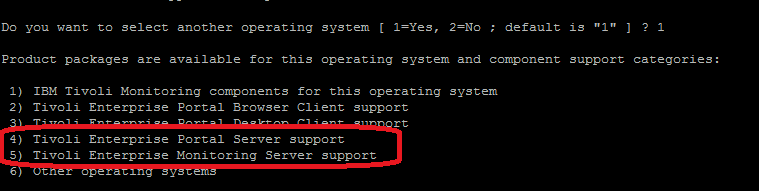
next, install the  Portal Server support and the TEMS support.


Installing TEMS support is not required if  you are installing only the TEPS on the server.

If only TEPS product is installed, and you are trying to install the TEMS application support - you will get this message.


Troubleshooting steps for ITPA when PA Agent communicates to the Database.

a ) login to DB2 using  su - db2inst1    

b )  db2 connect to WAREHOUS user <dbschema-username> using <dbschema-password >  


2. What is the JDBC driver being used in 'WPA and 'S&P  Versus  the ones used in the 'ITPA ?   Are they from DB2 drivers only.

Check the Database level/version.


3. Is this an upgrade from one Database to another .

In other words you were at V9.7 and then upgraded to V10.1  <== ?? "ERRORCODE=-4214, SQLSTATE=280"  leads me to ask this.


a ) Can you enter the hostname when configuring instead of localhost, and try once.
Can you send the snapshot of the WPA, S&P Manage TEMS configuration panels that show the user name and the JDBC credentials, and the ITPA having this driver and the 'Test Connection being successful'.


Was the agent.cfg - parameters hand tweaked ? or hand edited or removed /deleted etc.


ITMHOME/<arch>/pa/config/agent.cfg

....
analytic NLT_DELETE_TEMP_FILES=true
# TDW Database Connection
TDW_DB_TYPE=DB2
analytic TDW_DB_TYPE=DB2
analytic TDW_DB_CONN_TYPE=JDBC
analytic TDW_DB_DRIVER=com.ibm.db2.jcc.DB2Driver
analytic TDW_DB_DSN="jdbc:db2://9.118.41.57:50000/WAREHOUS"
analytic TDW_DB_USER=itmuser
analytic TDW_DB_PASSWD={AES256:keyfile:a}j7tKGILZ8xw3myYH3g6sXg==    <========== I'm interested in seeing this.
analytic TDW_DB_SCHEMA=itmuser
analytic SPSS.Home=/opt/IBM/SPSS/StatisticsServer20
analytic SPSS.Enabled=false
analytic TEP_TMSC=ip.pipe:#9.118.41.57
analytic start


Tuesday, August 20, 2013

Listing AttributeGroups, Creating historical collections on Attributes supported by an agent. ( histcoll.sh)

key:
 tacmd tepslogin -s localhost

 tacmd histlistattributegroups -t pa  // for the Performance Agent.

 tacmd histlistattributegroups -t p3  // For the domain support of the OS Agent.
( p4 = Oracle, p6 = systemP, pu = VMware , p0 = DB2 ... and so on )

 tacmd histlistattributegroups -t lz  // for the Linux OS Agent

$ITMHOME/bin/tacmd histcreatecollection -a IVT_LIN_CPU -t "Linux" -e IVT_LIN_CPU -o "Linux CPU"   -c $COLINT -i $WHINT


How to get the list of all attributes for a certain agent so that it can be configured.

Let's say you want to configure the historical collections for a certain agent in ITM. ( for example for  Linux OS Agent, or the PA Agent itself )

Here you would need the names of the attribute groups so that we can automate creation of the collection groups.

Below is an example of the Linux OS Agent historical collections on that was created using a script.


We can create them manually - by opening the ITM TEPS Historical Collection Configuration panel and entering them one by one as shown below.


Or by using a script and providing the object name with the -o flag.

$ITMHOME/bin/tacmd histcreatecollection -a IVT_LIN_CPU -t "Linux" -e IVT_LIN_CPU -o "Linux CPU"   -c $COLINT -i $WHINT
$ITMHOME/bin/tacmd histstartcollection -a IVT_LIN_CPU          -m *LINUX_SYSTEM

More can be obtained from this link.

http://pic.dhe.ibm.com/infocenter/tivihelp/v15r1/index.jsp?topic=%2Fcom.ibm.itm.doc_6.2.2fp2%2Fhistcreatecollection.htm


Below, I will show how to get the attributes for the Performance Agent, and add them using a script.

This is the TEPS GUI Historical Collections Configuration panel before the collection settings are added.
Note that the Performance Analyzer - does not have the "plus" sign before it.


Open a command prompt to the Linux server and go thru the steps below.


[root@nc9118041057 logs]# tacmd tepslogin -s localhost

 Username?  sysadmin

 Password?
 KUICTL001I Validating user credentials...

KUIC00007I: User sysadmin logged into server on https://localhost:15200.
[root@nc9118041057 logs]# tacmd histlistattributegroups -t pa
KUIHLA006I Validating user credentials...
Group Name                   Status
Generic 64 Arithmetic        Not Configured
Generic 64 LT Fcast          Not Configured
Generic 64 LT Status         Not Configured
Generic Arithmetic           Not Configured
Generic D64 Arithmetic       Not Configured
Generic D64 LT Fcast         Not Configured
Generic D64 LT Status        Not Configured
Generic D Arithmetic         Not Configured
Generic D LT Fcast           Not Configured
Generic D LT Status          Not Configured
Generic LT Fcast             Not Configured
Generic LT Status            Not Configured
KPA GENERIC D32 NLT FCAST    Not Configured
KPA GENERIC D32 NLT STATUS   Not Configured
KPA GENERIC D64 NLT FCAST    Not Configured
KPA GENERIC D64 NLT STATUS   Not Configured
KPA GENERIC I32 NLT FCAST    Not Configured
KPA GENERIC I32 NLT STATUS   Not Configured
KPA GENERIC I64 NLT FCAST    Not Configured
KPA GENERIC I64 NLT STATUS   Not Configured
KPA T MOSWOS AGENT           Not Configured
KPA T MOSWOS DB              Not Configured
KPA T MOSWOS SUB AGENT       Not Configured
KPA T MOSWOS TASK            Not Configured


--


Based on the collections name, I can now create a simple shell script to add these to the History collections as shown

#!/bin/bash

Note: the 2 attribute groups Generic Arithmetic and KPA T MOSWOS Agent being created with the
histcreate


#!/bin/bash

### CREATE AND START COLLECTION FOR ATTRIBUTE GROUPS BELONG TO  LINUX OS TYPE
ITMHOME=/opt/IBM/ITM
# Change default collection interval according to your needs
COLINT=1m
# Change default warehouse interval according to your needs
WHINT=15m

export PATH=$PATH:$ITMHOME/bin:.

# If you want to specify user and password apennd the following parameters after %COMPUTERNAME%:
# -u sysadmin -p password
tacmd tepslogin -s `hostname`

#  <= the PA is the domain code, it can be set to LZ or any other domain.

$ITMHOME/bin/tacmd histcreatecollection -a IVT_GEN_ARITH          -t "PA"   -e IVT_GEN_ARITH          -o "Generic Arithmetic" -c $COLINT -i $WHINT
$ITMHOME/bin/tacmd histcreatecollection -a IVT_KPA_T_MOSWOS_AGENT -t "PA"   -e IVT_KPA_T_MOSWOS_AGENT -o "KPA T MOSWOS AGENT" -c $COLINT -i $WHINT

#Generic D Arithmetic
#Generic D LT Fcast
#Generic D LT Status
#Generic LT Fcast
#Generic LT Status
#KPA T MOSWOS AGENT
#KPA T MOSWOS DB
#KPA T MOSWOS SUB AGENT
#KPA T MOSWOS TASK
$ITMHOME/bin/tacmd histstartcollection -a IVT_GEN_ARITH                   -m *AFT_PERF_ANALYZER_WHSE_AGENT
$ITMHOME/bin/tacmd histstartcollection -a IVT_KPA_T_MOSWOS_AGENT          -m *AFT_PERF_ANALYZER_WHSE_AGENT


This will create some tables in the Database.


Post Operation - check the groups configured command line.
 
 tacmd histlistattributegroups -t pa

KUIHLA006I Validating user credentials...
Group Name                   Status
Generic 64 Arithmetic        Not Configured
Generic 64 LT Fcast          Not Configured
Generic 64 LT Status         Not Configured
Generic Arithmetic           Configured
Generic D64 Arithmetic       Not Configured
Generic D64 LT Fcast         Not Configured
Generic D64 LT Status        Not Configured
Generic D Arithmetic         Configured
Generic D LT Fcast           Configured
Generic D LT Status          Configured
Generic LT Fcast             Configured
Generic LT Status            Configured
KPA GENERIC D32 NLT FCAST    Not Configured
KPA GENERIC D32 NLT STATUS   Not Configured
KPA GENERIC D64 NLT FCAST    Not Configured
KPA GENERIC D64 NLT STATUS   Not Configured
KPA GENERIC I32 NLT FCAST    Not Configured
KPA GENERIC I32 NLT STATUS   Not Configured
KPA GENERIC I64 NLT FCAST    Not Configured
KPA GENERIC I64 NLT STATUS   Not Configured
KPA T MOSWOS AGENT           Configured
KPA T MOSWOS DB              Not Configured
KPA T MOSWOS SUB AGENT       Not Configured
KPA T MOSWOS TASK            Not Configured