Thursday, December 1, 2011

IBM ITM - Tivoli Network Monitoring.


ITM - Tivoli Network Monitoring.

Network Monitoring has and is a significant part of any server or any hardware that is online and has to be checked for it's health often.
Now, you can walk into any data center or if you can imagine a lot of servers - they need constant monitoring, attention, and check on its readiness of doing it's role at any moment.

This accounts for a good part of the expenses in any IT department, as this involves maintaining the servers,  also prepare for any upcoming contingencies.

Enter, the IBM Network monitoring solution - The ITM ( IBM Tivoli Monitoring ) which is one of the products of the Tivoli suite of products.
This product consists of monitoring capabilities which can be installed on a server and told to monitor a hardware resource like a server/router etc.
The product internally comprises mainly of TEMS ( Tivoli Enterprise Monitoring Server ), TEPS ( Tivoli Enterprise Portal Server ). these are the back end workhorses.

TEMS - is the data collection component which can store the network data and has multiple ways it can store. It can either in DB2, or embedded or other Database

TEPS - is the Portal Server -on which the data is being rendered for visual presentation. Here the TEPS can be a web driven or a Java Application.

ITM can monitor the server(s) ( or any hardware resources ) which allows installation of the agent or has the SNMP agent  on it.

This allows other add-in modules for event forwarding and also interpretation of the events ( or correlation and take appropriate actions )

A snapshot of the Tivoli Network Monitoring Portal interface is shown below:


Tivoli Network Monitoring and the Offering as a SaaS the IBM Cloud.

ITM - Tivoli Network Monitoring.

Network Monitoring has and is a significant part of any server or any
hardware that is online and has to be checked for it's health often.
Now, you can walk into any data center or if you can imagine a lot of
servers - they need constant monitoring, attention, and check on its
readiness of doing it's role at any moment.

This accounts for a good part of the expenses in any IT department, as this
involves maintaining the servers, also prepare for any upcoming
contingencies.

Enter, the IBM Network monitoring solution - The ITM ( IBM Tivoli
Monitoring ) which is one of the products of the Tivoli suite of products.
This product consists of monitoring capabilities which can be installed on
a server and told to monitor a hardware resource like a server/router etc.
The product internally comprises mainly of TEMS ( Tivoli Enterprise
Monitoring Server ), TEPS ( Tivoli Enterprise Portal Server ). these are
the back end workhorses.

TEMS - is the data collection component which can store the network data
and has multiple ways it can store. It can either in DB2, or embedded or
other Database

TEPS - is the Portal Server -on which the data is being rendered for visual
presentation. Here the TEPS can be a web driven or a Java Application.

ITM can monitor the server(s) ( or any hardware resources ) which allows
installation of the agent or has the SNMP agent on it,

This allows other add-in modules for event forwarding and also
interpretation of the events ( or correlation and take appropriate
actions )

Some snapshots of the TEPS interfaces are as shown :
(Embedded image moved to file: pic31275.gif)

Now, this has been installed on the IBM Cloud and made available to IBM
paid-customers who can bring up an instance on any data centers and make it
operational and can monitor the servers on the cloud.

Wednesday, November 30, 2011

Social Media : Dojo Widgets ( e.g: checkbox ) into a OpenSocial Gadget.


Article written here is my own opinion and does not reflect my employer's point of view.

Social Media gadgets are slowly becoming popular amongst the community who are developing content in digital influence and intelligence. These gadgets provide the ability to create/connect/exchange information between friends/colleagues and others who are part of a group.

Here I am experimenting with this Apache Shindig - which is an Apache module allowing developers to create Open Social apps to create gadgets. These gadgets have the ability to handle REST and RPC requests.

The advantages of this Open Social is that the developer don't have to start from scratch as the Apache Module ( Shindig) provides it as a built in feature.

Before I go into some details:  Here are my definitions of terms being used in this article.
Container : The Interface ( the web page in other words ) where the gadgets can be loaded.
Gadgets : This is xml file which has the definition of how the front end should look like. The xml file consists of paragraphs like

<Module>
<ModulePrefs >   ...........  </ModulePrefs>
..html code encompassed in [[ CDATA ....  ]]


To get this dojo widget into the open social container - do the following.

1. In the webapps/ROOT/container folder,

Create this file and name it dojo_checkbox.html
Note : the specURL0 would point to the right/appropriate location depending on your configuration.

<!--
-->
<!DOCTYPE html>
<html>
<head>
<title>Sample: Simple Container</title>
<!-- default container look and feel -->
<link rel="stylesheet" href="gadgets.css">
<script type="text/javascript"
src="../gadgets/js/shindig-container:rpc.js?c=1&debug=1&nocache=1"></script>
<script type="text/javascript">
var specUrl0 =
'http://localhost:8080/productserver/widgets/dojo_checkbox.xml';

// This container lays out and renders gadgets itself.
function renderGadgets() {
var gadget0 = shindig.container.createGadget({specUrl: specUrl0});
shindig.container.addGadget(gadget0);
shindig.container.layoutManager.setGadgetChromeIds(
['gadget-chrome-x']);
shindig.container.renderGadget(gadget0);
};
</script>
</head>
<body onLoad="renderGadgets();">
<h2>Sample: Simple Dojo Check Box Container</h2>
<div id="gadget-chrome-x" class="gadgets-gadget-chrome"></div>
</body>
</html>
------------X-----------Done -----------X-------

Next, create the file, productserver/widgets/dojo_checkbox.xml as shown.


---------X-------- Cut and Paste -------------X------------
<?xml version="1.0" encoding="UTF-8" ?>
<Module>
<ModulePrefs title="Hello OpenSocial Gadgets!" height="200"
author="Shashi Kiran" author_email="kiranshashiny@gmail.com"
screenshot="" thumbnail="" >
<Require feature="opensocial-0.8" />
</ModulePrefs>
<Content type="html">
<![CDATA[
<link rel="stylesheet" type="text/css"/>
<script type="text/javascript" src="path/to/local/dojo.js"></script>
<script>
function loader () {
dojo.require ("dijo.parser");
dojo.require ("dijit.form.CheckBox");
dojo.addOnLoad(callback);
function callback () {
new dijit.form.CheckBox ({}, dojo.byId("cb"));
}
dojo.config.parseOnLoad = true;
dojo.config.dojoBlankHtmlUrl = '/blank.html';
dojo.addOnLoad(loader);
</script>

<input id="cb" dojotype="dijit.form.CheckBox" name="developer"
checked="checked" value="on" type="checkbox" />
<label for="cb"> Are you a Developer </label>
]]>

</Content>
</Module>
--------------X-------------- Done ---------------------X-----------------
Now go to the browser and type in
http://localhost:8080/container/dojo_checkbox.html and it will render the
checkbox widget.

Open Social Examples - on Apache Web Server

Open Social war file comes with some other examples - these were brought up
as shown.....


(Embedded image moved to file: pic17602.gif)


This is how it renders.

(Embedded image moved to file: pic01080.gif)

(Embedded image moved to file: pic08673.gif)

Fw: Apache OpenSocial - Configuration - Tutorial


This tutorial is to install the OpenSocial Container on  Apache.

Open Social Gadget helps in ( similar to Facebook and other social media
outlets ) connect with friends/colleagues and share information.
Blogging my experiences here.
1.
I used the Apache 6.0 on my Windows XP.
2. First I downloaded the Apache Shindig - war file from this location.
http://shindig.apache.org/
3. Click on Download


5. Copied the shindig-server-2.0.0.war file to the webapps folder.
6. Moved the ROOT folder to ROOT.old
7. Moved the shindig-server-2.0.0.war to ROOT.war

8. Started Tomcat
9. Open FireFox
10.
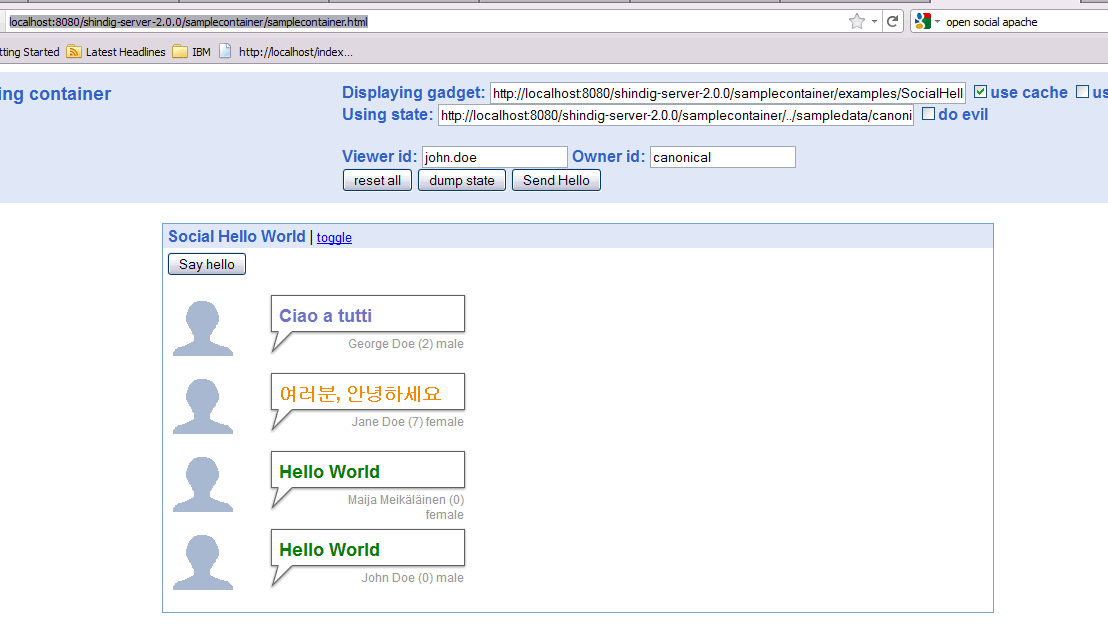
http://localhost:8080/samplecontainer/samplecontainer.html
This is the final outcome - the page that shows the sample Open Social Demo.


Monday, October 17, 2011

Java code for quiz

import java.io.BufferedReader;
import java.io.BufferedWriter;
import java.io.File;
import java.io.FileInputStream;
import java.io.FileWriter;
import java.io.IOException;
import java.io.InputStreamReader;
import java.io.UnsupportedEncodingException;
import java.util.ArrayList;


class Foo{
public String subject;
public String module;
public String question_type;
public String ref_in_book;

public String question;
public String correct_ans;

public String first_option;
public String second_option;
public String third_option;
public String fourth_option;


public Foo(String subject, String module, String question_type, String
ref_in_book, String question, String correct_ans){
this.subject = subject;
this.module = module;
this.question_type = question_type;
this.ref_in_book = ref_in_book;

this.question=question;
this.correct_ans=correct_ans;
this.first_option = first_option;
this.second_option = second_option;
this.third_option = third_option;
this.fourth_option = fourth_option;
}
}

public class ReadSimpleFile {
public static void main(String[] args) {

BufferedReader in = new BufferedReader(new
InputStreamReader(System.in));

File file = new File("c:\\downloads\\ap_questions.txt");
if(!file.exists())
{
System.out.println("File does not exist");
System.exit(0);
}
else
{
try{

BufferedReader i = new BufferedReader(new
InputStreamReader(new FileInputStream(file),"UTF8"));

FileWriter fstream = new FileWriter(
"c:\\Program Files\\Apache Software Foundation\\Apache2.2\\htdocs
\\out.html");
BufferedWriter out = new BufferedWriter
(fstream);

String str1 ;
String temp[];
int line_count=0;

//Map<String, String> map = new
HashMap<String, String>();

ArrayList<Foo> foos = new ArrayList<Foo>();

while ( (str1 = i.readLine()) != null ) {
String delimiter = "\\|";
temp = str1.split(delimiter);

temp[0].trim(); // subject =
maths physics chemistry

temp[1].trim(); // Module name =
samantara shredi , gunothara_shredi
temp[2].trim(); // Question_type =
single_answer multiple choice match_following
temp[3].trim(); // Reference in text
book ? Ex 1.3 5A, 1.2 2ii

temp[4].trim(); // Actual question
temp[5].trim(); // Correct_answer;
/*temp[6].trim(); // First optional
answer
temp[7].trim(); // Second optional
answer
temp[8].trim(); // Third guess answer
temp[9].trim(); // Fourth guess
answer
*/
foos.add(new Foo ( temp[0], temp[1],
temp[2],temp[3], temp[4], temp[5] ));
}

// You will collect this as an input
argument.
String subject_search = "maths";

// You will collect this as an input argument
from user.
String question_type = "single_answer";

out.write("<html>" );
out.write("<head>" );
out.write("<meta http-equiv=\"content-type\"
content=\"text/html;charset=UTF-8\" /> ");
out.write("<h3> ಸಮಾಂತರ ಶ್ರೇಡಿ </h3>\n");

out.write("</head>" );

for ( int s=0; s< foos.size(); s++ ) {
int count = s + 1;
out.write(count + ": "+foos.get(s).
question +"<br>");

if ( ( count % 10 ) == 0 ) { out.write(
"<p style=\"page-break-before: always\"> "); }
}
out.write( "<p style=\"page-break-before:
always\"> ");

out.write("Correct Answers: ");

for ( int s=0; s< foos.size(); s++ ) {
int count = s + 1;
out.write("<b>" + count + ") </b>"
+foos.get(s).correct_ans + " &nbsp; &nbsp; &nbsp; ");
}

out.write("</html>" );

out.close();
}

catch(UnsupportedEncodingException ue){
System.out.println("Not supported : ");
}
catch(IOException e){
System.out.println(e.getMessage());
}
}
}
}

Monday, August 29, 2011

Retrieving IP address(es) of VM from VM vSphere Client

Open vSphere Client,

Click on the VM you are interested -> Go to Summary.

(Embedded image moved to file: pic21038.gif)

Thursday, August 18, 2011

How to do a 'here-to' in Java

Window->Preferences->Java->Editor->Typing The last check box is "Escape
text when pasting into a String literal". Check that. Now when you paste
when your cursor is between quotation marks it'll be escaped.

If you want to cut and paste some code AS-IS in java.

Monday, August 8, 2011

Creating Java Online quiz , using creative commons license.

http://download.fyxm.net/download-now-Qedoc-Quiz-Maker-Others-Home-&-Education-61724.html

Download QE doc
(Embedded image moved to file: pic11811.gif)

(Embedded image moved to file: pic17309.gif)

Bring up the app, and request a license.

(Embedded image moved to file: pic02603.gif)


Once you get the license,

Create a new test - > New on the left
(Embedded image moved to file: pic08613.gif)


(Embedded image moved to file: pic02328.gif)

(Embedded image moved to file: pic18522.gif)

(Embedded image moved to file: pic07510.gif)

Save it, keep entering 10 such questions and click on

(Embedded image moved to file: pic07492.gif)


(Embedded image moved to file: pic05158.gif)

Tuesday, August 2, 2011

How to print html code AS-IS on the web page

Use
<xamp>
<html>


<!- code here will be rendered as is on the web page -->
</html>
</xamp>