Saturday, August 29, 2015

Snapshot of Sending commands from IoTF to RPI.

This is a snapshot of how one can send some basic commands from the NodeRed ( IoTF ) back to the device. Here I am sending some simple strings to the device ( in my case it is a Raspberry Pi ) The code on RPi, should sit and listen to incoming commands,by using a callback function.

Thursday, August 27, 2015

Simple node js code to receive commands from a Device over mqtt. ( App side )

A traditional publish / subscribe model for an IOT would mean that the Device ( in this case let's say a RPI ) is publishing some sensor data ( say a temperature from a furnace )
and sending it to IoT platform.  This is called the "Client"

At the other side - there is an app" end - where we have a C program, or Java or Python application which is sitting and listening to the PublishEvents from the device(s).


Below is a App end code in node.js - which connects to IoTF ( Internet of Things Foundation )  and prints whatever it received from the devices.


A sample  node.js code to receive events data published from the device (e.g : Raspberry Pi )


References :
http://iotf.readthedocs.org/en/latest/libraries/python_cli_for_apps.html#handling-events-from-devices


Run this on your laptop  ( or on the app end )
( npm install iotf _ if this complains that Iotf libraries are not installed ) 
 
==
var Client = require("ibmiotf").IotfApplication;

//read the config from the application.cfg
var config = Client.parseConfigFile('./iotf.cfg');

var application = new Client(config);

var deviceType = "iotdevice";
var deviceId = "b827eb984666"

application.connect();

application.on("connect", function () {


        setInterval(function function_name (argument) {
                payload = '{ "numOfTimes" : 23 }';

                application.publishDeviceCommand(deviceType, deviceId, "blink", "json",payload);

        }, 2000);

});


==
This will connect to IoTF and print data being published from the device(s) which are at remote places.

A sample :

[user@oc0650888602 nodetest]$ node app.js
[2015-08-27 18:24:10.268] [INFO] [default] - Connected to IoTF successfully
Device Event from :: iotdevice : b827eb984666 of event status with payload : {"d" : {"temp" : 16 }}
Device Event from :: iotdevice : b827eb984666 of event status with payload : {"d" : {"temp" : 5 }}


==
A sample  iotf.cfg  that is used is as shown:
org = 8ubmht
id = b827eb984666
auth-method = apikey
auth-key = a-8ubmht-httz8bouy6
auth-token = NNZrVxhQpZa90Jc*5J    


Sunday, August 16, 2015

Temperature and Humidity Sensor using DHT11 connected to Raspberry Pi.

Blog used to refer when building this project:

http://www.rpiblog.com/2012/11/interfacing-temperature-and-humidity.html


Items used in this project:

Raspberry Pi  Model B.

DHT11 Temperature sensor

10K Resistor -

Breadboard-  on which the Sensor was connected and 3 pins from it being used for connecting to Power, GND and the data pins.

Setup:

- Connected the first Pin of the DHT 11 to +5V  ( Pin 2 of RPi) ( seeing from the left of the DHT11 )

- Connected the last pin of the DHT11 to  GND ( Pin 39 of the RPi)

- Connected the 2nd pin i.e data ( from the left of the DHT11) to Pin 7, i.e GPIO4 of the RPi.
How to Compile source code:
-gcc -o sensor temp_rh_sensor.c -L/usr/local/lib -lwiringPi

A reference device - an independent device used to check that the DHT11 was reporting approximately same temperature.


^Cpi@raspberrypi ~/wiringPi $ sudo ./sensor
Interfacing Temperature and Humidity Sensor (DHT11) With Raspberry Pi
Invalid Data!!
Humidity = 58.0 % Temperature = 30.0 *C (86.0 *F)
Invalid Data!!
Humidity = 59.0 % Temperature = 30.0 *C (86.0 *F)

How to resolve HTTP Request failed error, when executing a git clone.

There could be instances when we try - to download some code,using 'Git Clone' - we are prompted by a HTTP Request failed message, This happens when there is no user credentials that is missing in the git request.
Below is a sample of the failure and also how to resolve it.
[user@oc0650888602 nodetest]$ git clone https://hub.jazz.net/git/user/iotstartertrial Initialized empty Git repository in /home/user/nodetest/iotstartertrial/.git/ error: The requested URL returned error: 401 Unauthorized while accessing https://hub.jazz.net/git/user/iotstartertrial/info/refs
fatal: HTTP request failed
Fix was to enter the user credentials as shown, and it works.
git clone https://your_alias:your_IBM_ID_password@hub.jazz.net/alias/project_name.
See Sample below:

[user@oc0650888602 ~]$ git clone  https://<user>:<password>@hub.jazz.net/git/<user>/iotstartertrial  Initialized empty Git repository in /home/<user>/iotstartertrial/.git/ remote: Counting objects: 27, done remote: Finding sources: 100% (27/27) remote: Total 27 (delta 0), reused 27 (delta 0) Unpacking objects: 100% (27/27), done.

Tuesday, August 11, 2015

My first Arduino external device as a IoT.

(See attached file: IMG_20150809_141754.jpg)(See attached file: IMG_20150809_141806.jpg)(See attached file: IMG_20150809_141757.jpg)


My first Arduino board and small C Program in the sketch to blink a LED on pin 13.

Sunday, August 9, 2015

Sending Automatic Twitter messages using Node-RED offered by IBM Bluemix

Node-RED is a  IBM flow creator tool, where users can use ready made input nodes, output nodes, write functions, inject and receive events to  and from various external devices ( or Internet of Things) like the Raspberry Pi, Arduino and others IoT devices as well send messages to  social media  portals like Twitter.

One can read more about it in this page http://nodered.org/.

Here I will blog about how to create a simple flow in the Node-RED and inject timely messages to my twitter account (@kiranshashiny) automatically.

To do this, You will need a
- twitter account
- IBM id


First login to IBM Bluemix using your IBM Id, and create an APP.


Open the URL shown- It should open a Node-RED editor page.


Click on "Go to your Node-RED flow editor"

It opens a blank canvas.

Click on Input-> Inject, and drag and drop it into the canvas.


You will see a node called timestamp.


Click on Social -> twitter, drag and drop it into the canvas.


Point at the output of timestamp and drag it to the input of Tweet. You will see a line connecting the nodes.


Double click on Timestamp and configure the node to send Twitter message every interval.


Now, double click on Tweet and fill in your twitter credentials.


Authorize and you will be prompted to close the new browser tab.


You will notice that the small red triangle is gone on Tweet node (this means the node is fully configured )

Click on Deploy


You will notice a small 'tweeting'  sign below the tweet node.


This tells that the tweets are going out to your account.
Login to your Twitter account and you will notice some random (time stamps) in your account.

Do not send too many tweets as it might impact your account and the twitter server.

once, done - reword the different options in the Inject node.

e


Some other options are :


Wednesday, July 1, 2015

Converting ppk key to a format that can be used with ssh. ( useful for Automating repeated tasks )

Often times you encounter a situation where you have a certain ppk file for a certain user, and want to automate logging into a server repeatedly using ssh and
doing it command line is so much simpler ,than using the putty interface .

The ppk file cannot be used in a ssh command line.
The ppk can only be used in the Putty terminal in the Auth panel.


This does not help if you want to repeatedly login to different servers command line in linux.

So this is what needs to be done.

1. Take the ppk file and convert it to a format that ssh will recognize.
Use command : puttygen user.ppk -O private-openssh -o key.ssh


2. ssh   user@10.xx.xx.xx  -i key.ssh

will let you login directly to the remote server.

Monday, June 22, 2015

Viewing Reports on Service Engage APM subscriptions.

How to view Reports from the APM console :

To get started using Service Engage - logon to
https:// www.ibmserviceengage.com/
and create a subscription.
Request for Reports to be added to the subscription .
Once the reports are added and you have downloaded the agent ( see my other blogs here to see how to download agents ) , you can view the reports.


In this blog - I will talk about how to view the reports for the Linux OS agent- assuming that the subscriber has subscribed or requested for the Reports component to be added to the  subscription.

Open the Service Engage APM console and click on the "Actions" -> on the upper right.

In the " Actions" -> Click on " Launch to Reports " ->  Click on "All my reports ->  

( If the All my reports does NOT show up , then it means -you have either a) NOT requested for the Reporting component , or the OS agent is NOT downloaded, installed and started on the remote agent.
If that is the case - go back and request the subscription, download the agent, configure and start the OS agent- only then will the Reports drop down will be visible.)

This should download the MHT  (Web Archive Format Files ) and when opened - will render the page as shown below.

The MHT file can be opened in both the FF and IE. ( For Firefox you will need to install the UnMHT  Add-on)


This will download the reports. which  can be viewed.


Shashi Kiran

Looking up OS Agents on APM ( Application Performance Monitoring )

This tutorial is about - how to lookup the OS agent that you have installed ( described in my earlier email) on the Service Engage APM GUI ( also called as the APM console )

The remote agents downloaded and installed on the Remote linux servers would have already been configured to point to your  APM Service Engage subscription.
( see my earlier blog on how to install and start the remote OS agent ).

Here I will talk about how the remote agents show up on the APM UI ( also called as APM Console ) after the remote agents are started.

The operator does not have to do any thing, post installation and startup of the agents, and they will automatically show up on the APM console.

Below, you will see that the remote OS agent installed on a Linux server "nc184107" is visible on the console.


Shashi Kiran

How install OS Agents from IBM Service Engage - and starting it.

After successful creation of a Application Performance Monitoring subscription from Service Engage
https://www.ibmserviceengage.com/


The user is prompted with an option to download the agents to be installed on the remote server.
Here, below I will choose to download the OS agents, and scp it to the remote Linux server where
I will untar and run the install APM Agents.sh script.

See notes below.

https://www.ibmserviceengage.com/


You would need to have an IBM Id to start creating one.

Once the appropriate subscription  is created and in this case - I will add the  Performance Management Component


After successful creation - you will be able to download the agents to be installed on the Remote agents.


Below is the extracted contents, and running of install script installAPMaasAgents.sh script.

[root@nc184107 IAPMaaS_Agent_Install_8.1.1]# ./installAPMaaSAgents.sh
 
The following products are available for installation:
 
    1) Monitoring Agent for Linux OS
    2) Monitoring Agent for Ruby
    3) Monitoring Agent for MySQL
    4) Monitoring Agent for MongoDB
    5) Response Time Monitoring Agent
    6) Monitoring Agent for WebSphere Applications
    7) Monitoring Agent for PHP
    8) Monitoring Agent for PostgreSQL
    9) Monitoring Agent for Python
   10) Monitoring Agent for Linux KVM
   11) Monitoring Agent for Tomcat
   12) Monitoring Agent for Node.js
   13) Monitoring Agent for DB2
   14) Monitoring Agent for Oracle Database
   15) Monitoring Agent for SAP Applications
   16) Monitoring Agent for DataPower
   17) Monitoring Agent for VMware VI
   18) Monitoring Agent for HTTP Server
   19) Monitoring Agent for Websphere MQ
   20) Monitoring Agent for IBM Integration Bus
   21) Monitoring Agent for JBoss
   22) Monitoring Agent for WebSphere Infrastructure Manager
   23) all of the above
 
Type the numbers that correspond to the products that you want to install. Type "q" to quit selection.
If you enter more than one number, separate the numbers by a space or comma.
 
Type your selections here (For example: 1,2): 1
 
The following agents will be installed:
 
    Monitoring Agent for Linux OS
 
Are your selections correct [ 1-Yes, 2-No; default is 1 ]? 1
 
Please specify the agent home (default: /opt/ibm/apm/agent):
 
The agent will be installed in /opt/ibm/apm/agent
 
Do you accept the license agreement(s) found in the directory /root/Desktop/IAPMaaS_Agent_Install_8.1.1/licenses?
 
Please enter [ 1-to accept the agreement, 2-to decline the agreement ] : 1
 
User has accepted the license agreement(s).
 
    Monitoring Agent for Linux OS will be installed.
 
Running ./os-agent.sh install
Checking product prerequisites before installation. You can disable this check by setting environment variable SKIP_PRECHECK
Setting Prerequisite Scanner output directory to user defined directory: /opt/ibm/apm/agent/logs/prereqchecker/20150622_031906

IBM Prerequisite Scanner
     Version: 1.2.0.15
     Build  : 20141127
     OS name: Linux
   User name: root
 
 Machine Information
 Machine name: nc184107
 Serial number:  VMware-42 23 c4 e2 40 6d 5e 9a-1a 2c a9 b1 d3 ce 67 19
 

Scenario: Prerequisite Scan


KAX - IBM Tivoli Monitoring Shared Libraries [version 06350900]:

KGS - IBM GSKit Security Interface [version 08005036]:

KLZ - Linux Monitoring Agent Prerequisite Checker [version 06350900]:


Overall result:   PASS  

Detailed results are also available in /opt/ibm/apm/agent/logs/prereqchecker/20150622_031906/result.txt

Installing core framework (common components)
Starting installation. Log file is /opt/ibm/apm/agent/logs/install_20150622-032242.log.
Installing components.
IBM Monitoring Shared Libraries [version: 06350900]
IBM GSKit Security Interface [version: 08005036]
Installation successfully completed.

Installing agent
Starting installation. Log file is /opt/ibm/apm/agent/logs/install_20150622-032249.log.
Installing components.
Monitoring Agent for Linux OS [version: 06350900]
You can secure your installation by running /opt/ibm/apm/agent/bin/secure.sh tool. Consult the documentation for details on how to run it.
Automatic start at system initialization has been configured.
Automatic stop at system shutdown has been configured.
Installation successfully completed.

Agent installation completed. Agent was configured and started using default configuration settings.
End running ./os-agent.sh install
 
 
#####################################################################################################################
The following agents have been installed successfully into the directory /opt/ibm/apm/agent:
    Monitoring Agent for Linux OS                 status: agent started
 
For any agent that is started, the agent is configured with the default settings.
 
Use the following commands to manage each installed agent:
    Monitoring Agent for Linux OS                 /opt/ibm/apm/agent/bin/os-agent.sh start or stop or status or uninstall
 
The install log file is /opt/ibm/apm/agent/logs/APMaaSAgents_install.log.
 
Performance Management Documentation URL:
https://www.ibm.com/developerworks/community/wikis/home?lang=en#!/wiki/IBM%20Application%20Performance%20Management%20as%20a%20Service/page/APMaaS%20Documentation
 
#################################################################


[root@nc184107 IAPMaaS_Agent_Install_8.1.1]# /opt/ibm/apm/agent/bin/os-agent.sh start
Processing. Please wait...
Info: The "Monitoring Agent for Linux OS" is already running.


Verify that the processes are running :

[root@nc184xxx bin]# ps -ef |grep lz
root     11021     1  2 03:44 pts/3    00:00:00 /opt/ibm/apm/agent/lx8266/lz/bin/klzagent
root     12470  5582  0 03:44 pts/3    00:00:00 grep lz


In my next blog - I will tell about how to view this OS Agent on the APM subscription dashboard.

Sunday, June 21, 2015

Cell phone position using its' accelerometer, displayed thru Bluemix IoT's MQTT Foundation.

A small experiment I tried where I entered Bluemix's URL on my cell phone and each time there was a movement on my cell.
I'd notice the different vibrations on the URL.

To do this -
First I went to https://console.stage1.ng.bluemix.net/

logged in with my IBM Id.
Clicked on IoT solutions.
Clicked on "Try it out" button


Enter an unique name 'RaspSPi' and 4 digit code  xxxx in the Device Name and the 4 digit code window and clicked on Go Play"

and immediately  got an URL.

http://iot-demo.mybluemix.net/device/RaspSPi 

I entered this URL on my Micromax Canvas A1 smartphone which asked me to validate my 4 digit code.
 
At the same time - out of curiosity I entered the same URL on my Lenovo Laptop and this is what I got.

Some data both on the web on my smart phone , as well as on the browser on which I opened the above link.

Observe the "Vibration" "Motion and other stats from my cell being displayed on the URL.

This is what was happening.

and I cut and paste this from the IoT's web site"
-- Cut and Paste ---
accelerometer data from your phone is being sent to the IoT Foundation.

A Bluemix app is using this data to mirror your movements — go on, try moving your phone.

-- Done -- Cut and Paste--


This below is when I laid my Cell phone at 90 degrees.


Below, is when I moved my cell phone in standing position.


Below , when I moved my cell phone to a slant position.


Shashi Kiran
Operations Support - Bluemix and Service Engage

IP address allotted to Raspberry Pi , when connected to my network wire less router.

The Raspberry  Pi IoT has the ability to connect wireless to the internet.

Here I have my R Pi - Wifi -adapter inserted into the device's USB port, and it communicates to my home network wireless Netgear Router.
This set up is in my home.

See the IP address from the Raspberry Pi connected to IoT device 192.168.1.4 - The display is my home TV connected via the USB cable to the R Pi.

(See attached file: IMG_20150618_204220.jpg)(See attached file: IMG_20150618_204226.jpg)(See attached file: IMG_20150618_204235.jpg)

Shashi Kiran

Saturday, April 25, 2015

Connecting my personal Raspberry Pi to IoT Foundation !

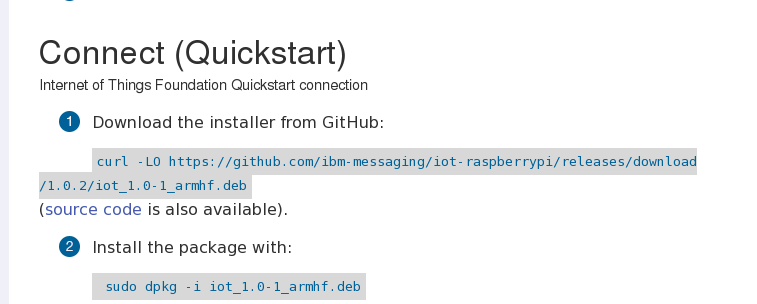
As  a startup to my experiments with Raspberry Pi which I bought over the weekend,  I installed the IoT as a service on my home Raspberry Pi as described in this wiki

https://developer.ibm.com/iot/recipes/raspberry-pi/

Notes in red below are outputs after I ran the Foundation's commands /instructions.


On my Raspberry Pi : I first started off with this command.

curl -LO https://github.com/ibm-messaging/iot-raspberrypi/releases/download/1.0.2/iot_1.0-1_armhf.deb
(source code is also available).
Install the package with:
sudo dpkg -i iot_1.0-1_armhf.deb
[
pi@raspberrypi /tmp $ sudo dpkg -i iot_1.0-1_armhf.deb
Selecting previously unselected package iot.
(Reading database ... 77373 files and directories currently installed.)
Unpacking iot (from iot_1.0-1_armhf.deb) ...
Setting up iot (1.0-1) ...
Starting the iot program
]


The iot process starts and publishes events to the IBM Internet of Things Foundation Quickstart.

The process runs as a system service, and starts whenever Raspberry Pi starts.

To verify the process is running, use the command:

service iot status
[
pi@raspberrypi /tmp $ service iot status
[ ok ] iot is running.
]


To visualize

service iot getdeviceid
[
pi@raspberrypi /tmp $ service iot getdeviceid
The device ID is b827eb984666
For Real-time visualization of the data, visit http://quickstart.internetofthings.ibmcloud.com/?deviceId=b827eb984666
]


I entered this device id


and FINALLY !  the Raspberry Pi was identified by the foundation visually.
Below, is my output.


You can stop the iot process with the following command:

sudo service iot stop


Tuesday, March 24, 2015

Installation of RTC 4.0.1 on RHEL 64bit.

This blog tells how to resolve a certain limitation on RHEL 64 bit when trying to install RTC 4.0.1

To fix - just add these 2 lines at the end of this file as described in this link  http://www-01.ibm.com/support/docview.wss?uid=swg21688528
=======
Resolving the problem

The following workaround works in the environments where we are seeing this issue.

Edit <IIM_install_dir>/eclipse/IBMIM.ini file, add the following 2 lines at the end of it and save the file: -


-Dorg.eclipse.swt.internal.gtk.useCairo=false
-Dorg.eclipse.swt.internal.gtk.cairoGraphics=false

Close the current terminal Windows and open a new one, and try to run ./IBMIM.

=======================


[ @oc8802001728 InstallationManager]$ cat /etc/issue
Red Hat Enterprise Linux Workstation release 6.6 (Santiago)
Kernel \r on an \m

[@oc8802001728 InstallationManager]$ uname -p
x86_64